
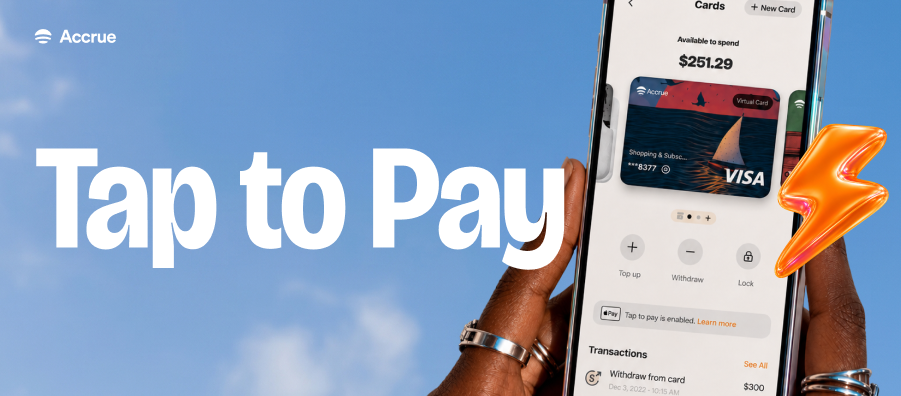
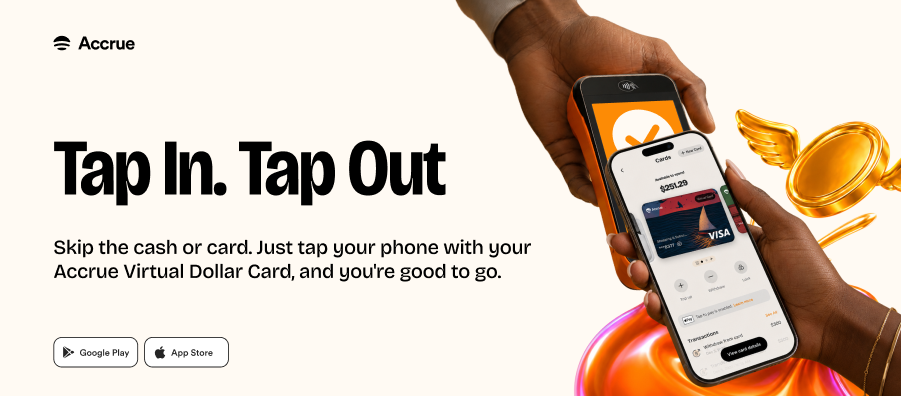
Picture paying for anything without searching for cash and buying lunch with a quick tap, or shopping after work or paying for hotels while travelling, all from the same Accrue VirtualCard already in your account.
That's the experience your Accrue Contactless Virtual Dollar Card lets you experience with just a tap of your iPhone. Once you've added your card to Apple Wallet, you can pay anywhere contactless payments are accepted.
If you're ready to start tapping, follow the steps below.
Before You Begin
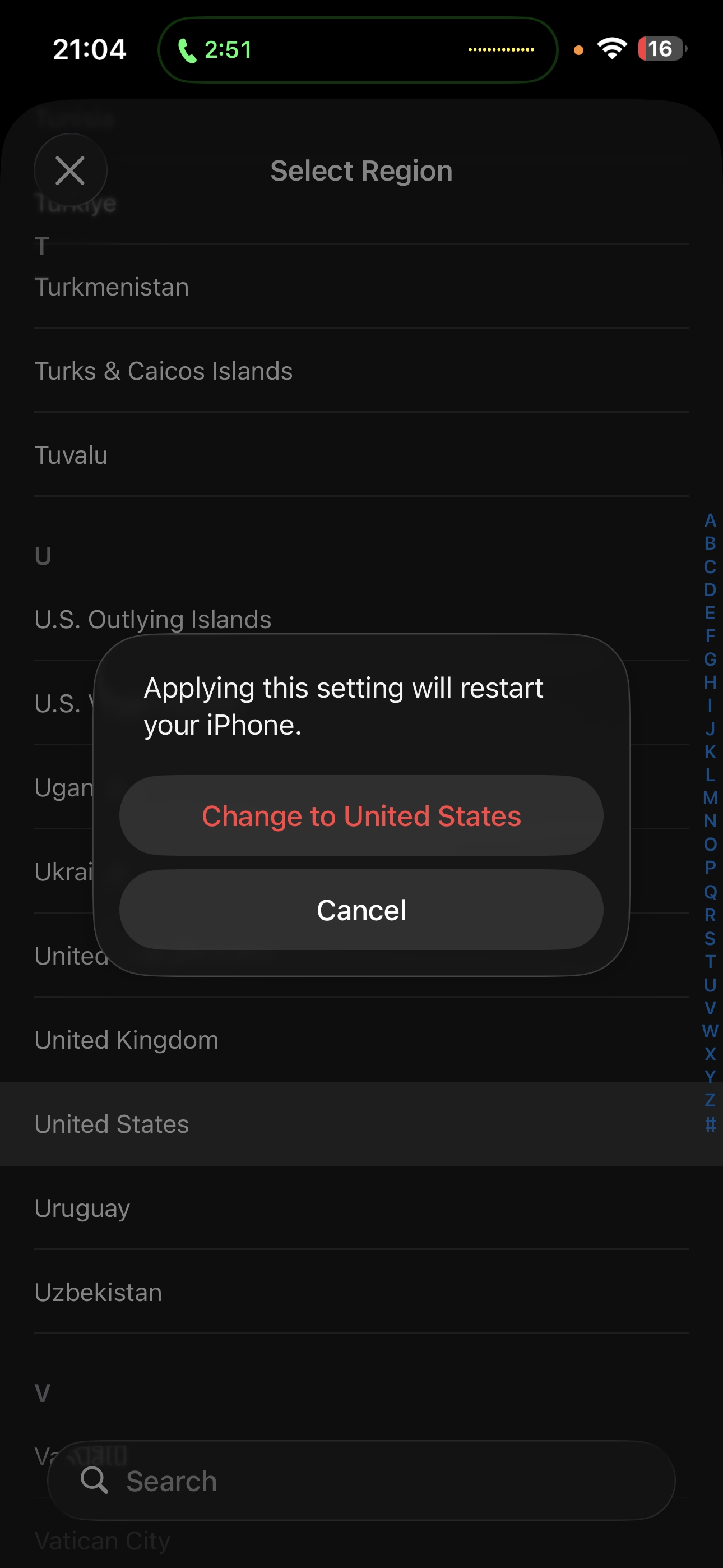
To add your Accrue Contactless Virtual Card to Apple Wallet, your Apple ID country or region must be set to the United States.
If it's currently set to another country, you can update it in a few minutes on your iPhone or iPad:
Open Settings.
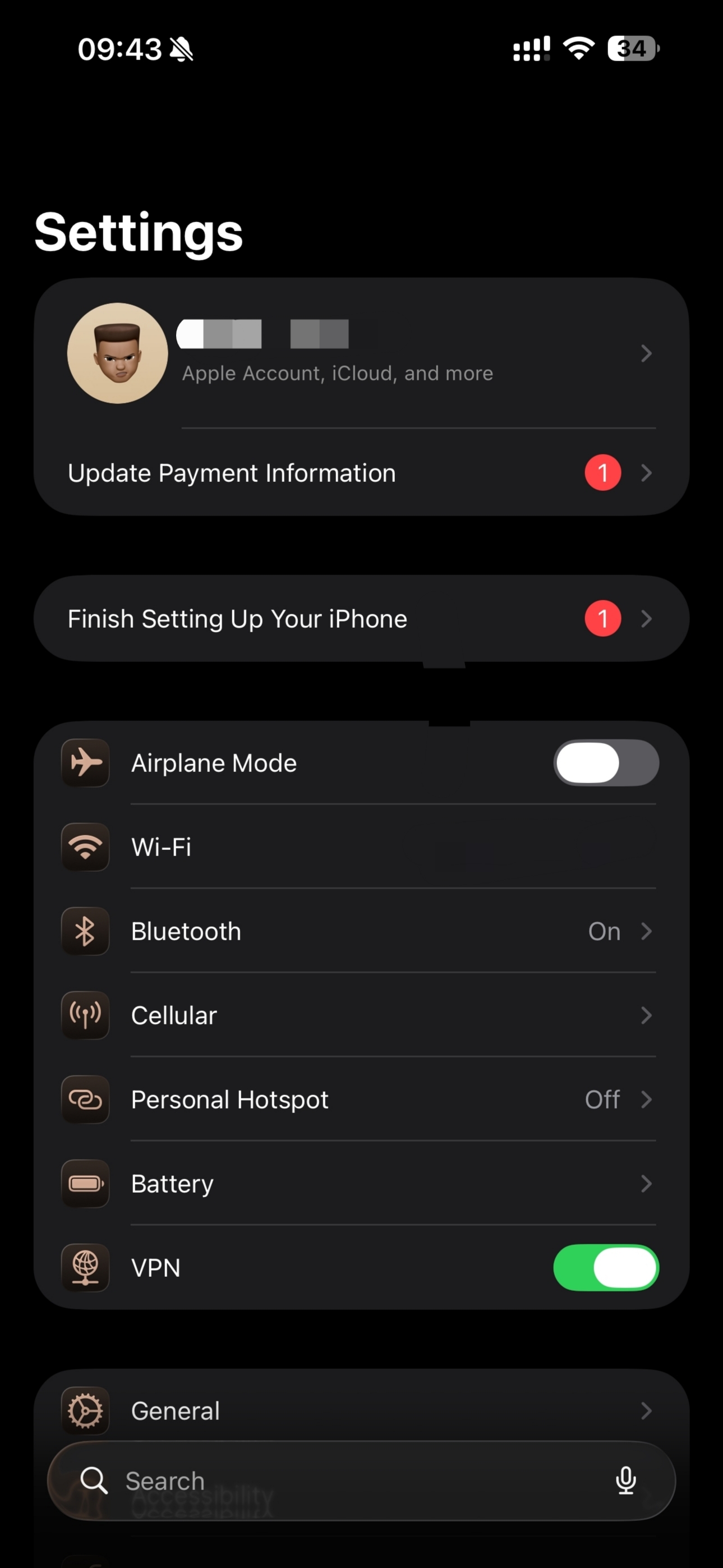
Scroll to General
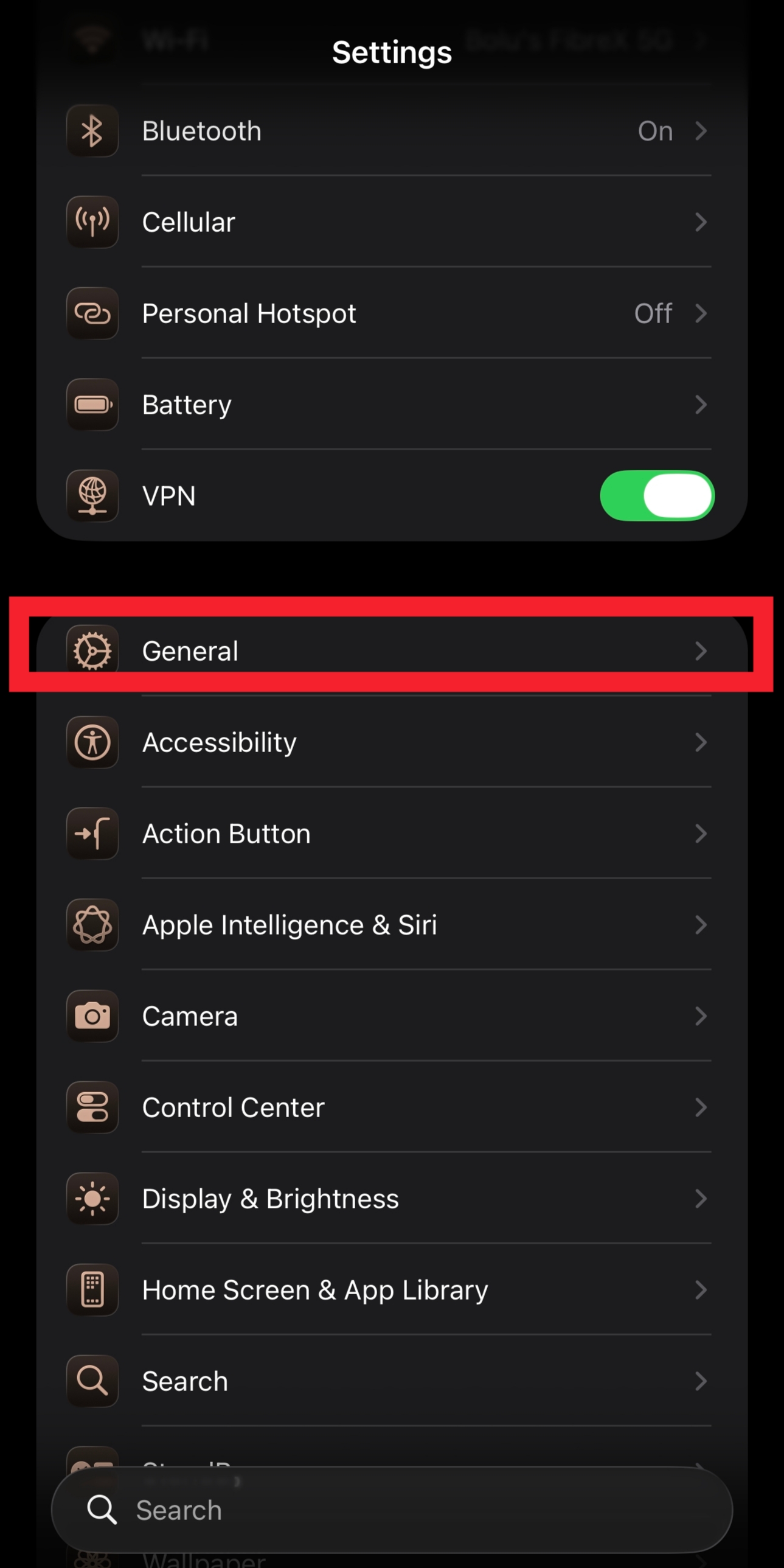
Click on Language and Region
Click and change to the United States.
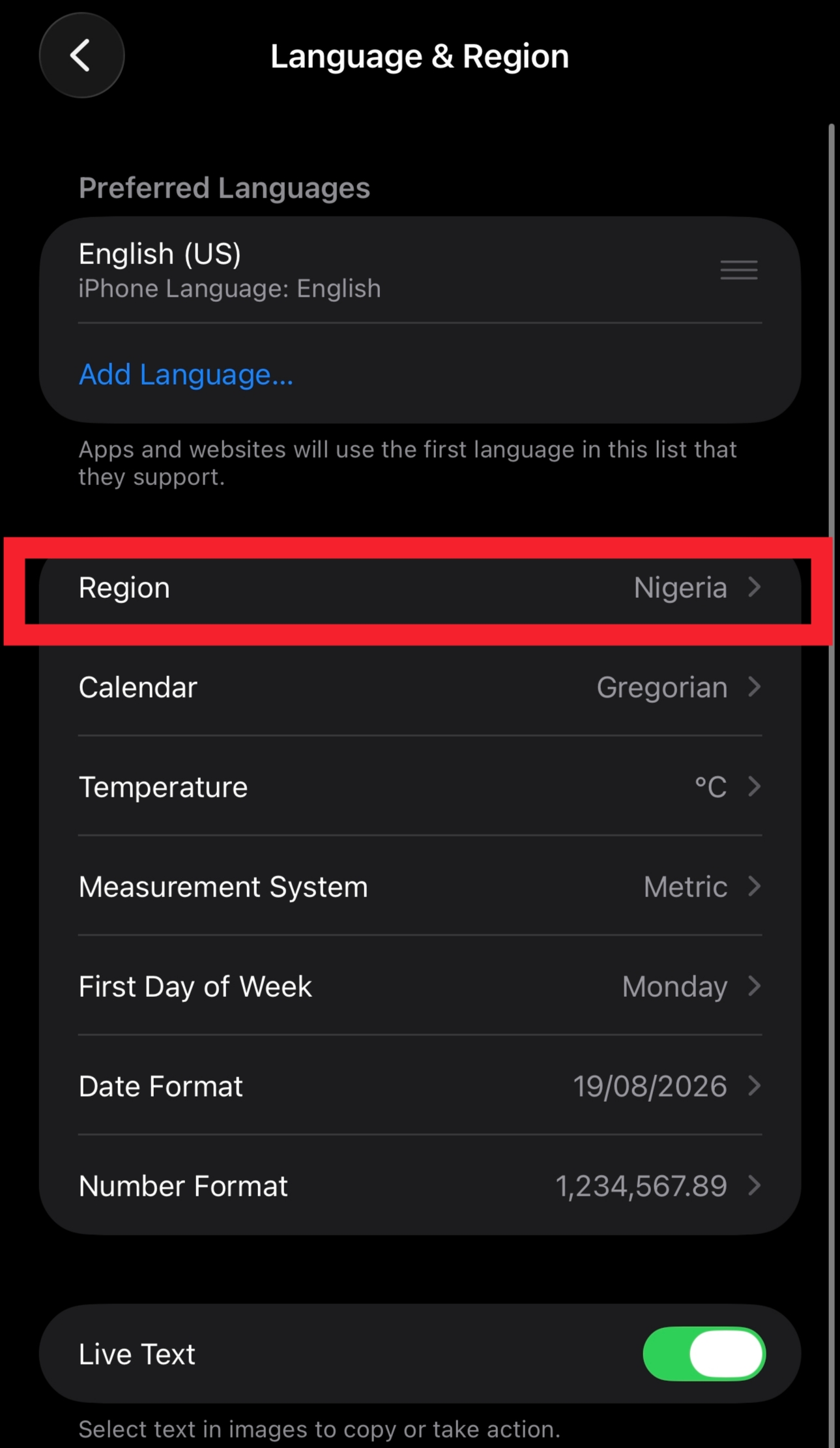
Your iOS will reboot, and after that, you're ready to add your Accrue Contactless Virtual Card.
How to Add Your Accrue Contactless Virtual Card to Apple
Open the payment method screen:
- Select Credit/Debit Card as your payment method.
- Enter your Accrue Contactless Virtual Card details.
- Enter the billing address associated with your Accrue Virtual Card.
- For the phone number, use the same phone number linked to your Accrue account.
- Tap Next or Done to save your payment method.
That's it! Your Accrue Contactless Virtual Card is now linked and ready to use with Apple Wallet.
You're Ready to Tap and Pay
Once your card has been added successfully, simply hold your iPhone near any contactless payment terminal. Apple Wallet will securely process the payment using your Accrue Contactless Virtual Card, making checkout quick, easy, and secure.
Frequently Asked Questions
Why do I need to change my Apple ID to the United States?
Apple Wallet availability and payment card support can vary by region. Setting your Apple ID country to the United States allows eligible users to add their Accrue Contactless Virtual Card to Apple Wallet.
Which phone number should I use?
Use the same phone number you registered with when creating your Accrue account.
What billing address should I enter?
Use the billing address associated with your Accrue Virtual Card. You can find this information in the Accrue app under your card details.
Can I still use my card online?
Yes. Adding your Accrue Contactless Virtual Card to Apple Wallet doesn't change how it works online. You can continue making online purchases while also enjoying tap-to-pay in physical stores.
Where can I use my card?
You can use your Accrue Contactless Virtual Card anywhere Apple Pay and contactless card payments are accepted.
Keep reading
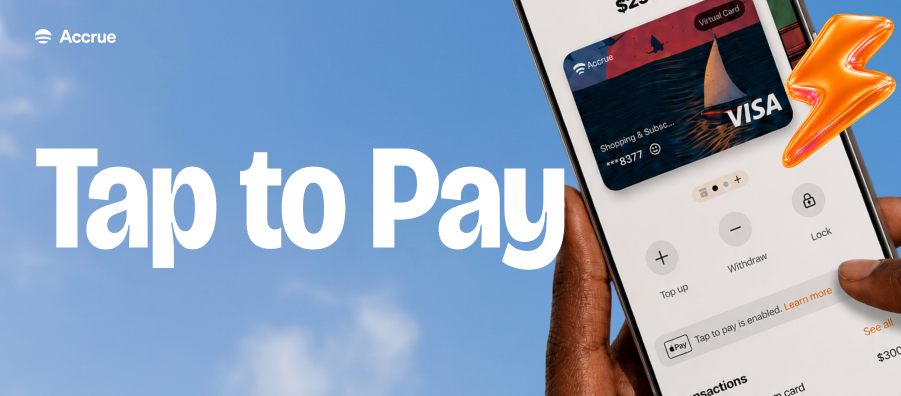
How to Enable Tap-to-Pay on Accrue Virtual Card to Google Pay
Ready to start tapping? Follow the steps below to add your Accrue Contactless Virtual Dollar Card to Google Pay.
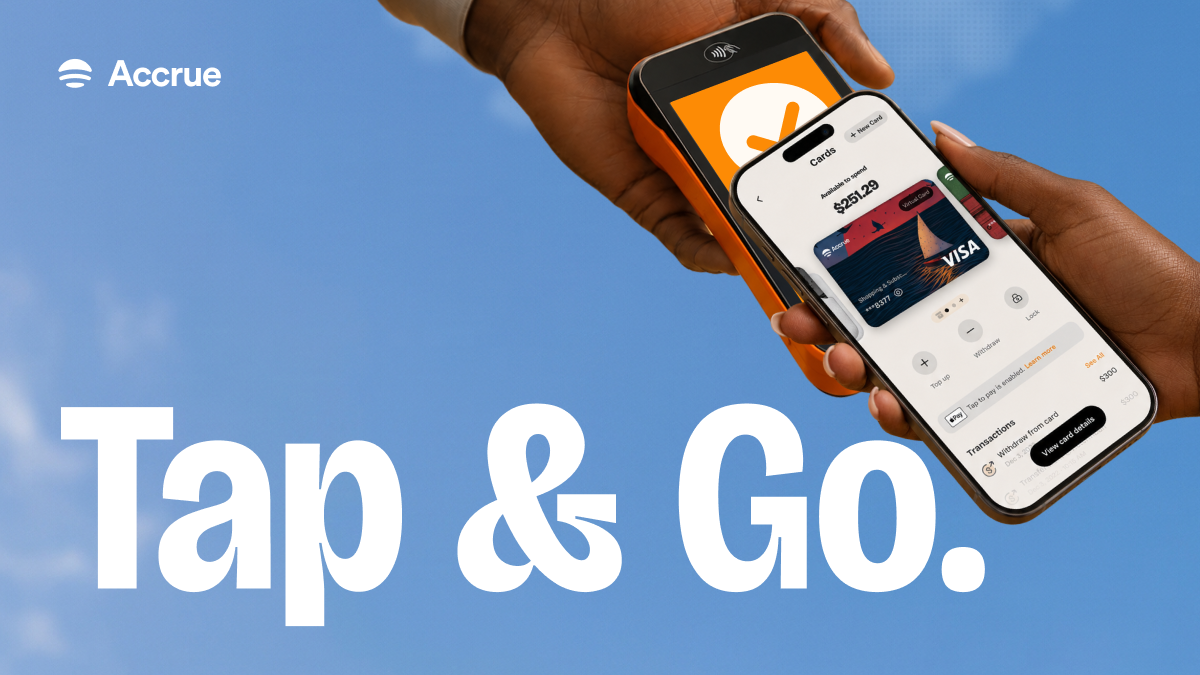
Spending Just Got Better With Accrue Contactless Virtual Dollar Card
With the contactless Accrue Virtual Dollar Card, your card becomes an everyday payment companion for wherever life takes you.
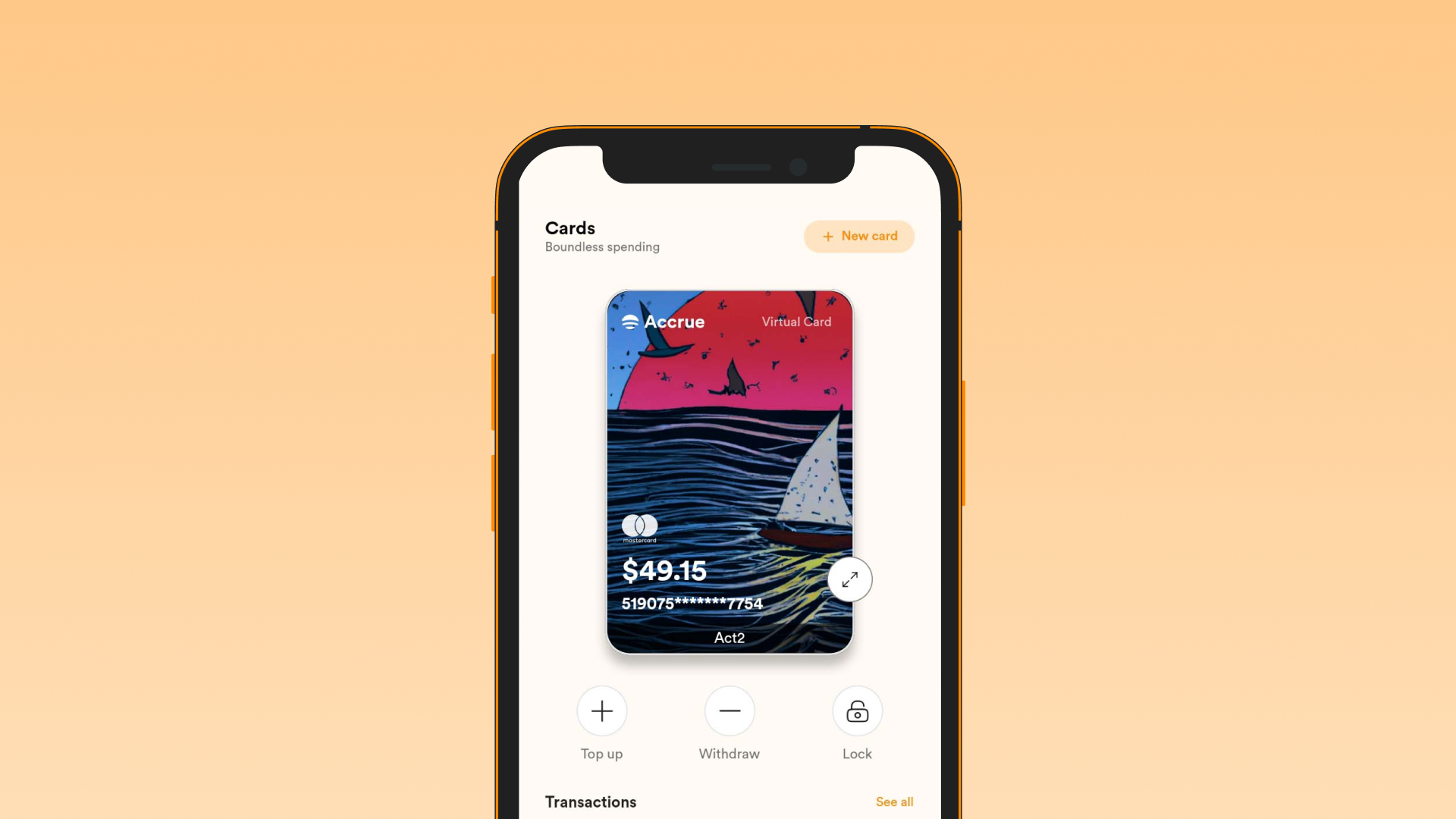
Accrue Virtual Card Supported Sites
List of sites where you can use the Accrue Virtual Dollar Card. 1. Apple 2. Google 3. TikTok 4. Telegram Premium 5. AliExpress 6. Temu 7. Amazon 8. Airbnb 9. Duolingo 10. Grammarly